On this page
- What is Google Search Console?
- How to Set Up Search Console (5 Minutes)
- The 7 Search Console Reports That Actually Matter
- Common Indexing Statuses and What to Do
- New in 2026: Generative AI Performance Reports
- Your 15-Minute Weekly Search Console Routine
- FAQs About Google Search Console
- Key SEO Terms in This Post
- Wrapping Up
If SEO is a car, Google Search Console is the dashboard. It tells you how fast you're going, whether the engine has a problem, and which warning lights are on.
And it's completely free, straight from Google.
The problem? When beginners first open it, they see dozens of reports, graphs and technical words, and close it again. In this guide, I'll cut through that. You'll learn how to set it up, the 7 reports that actually matter, how to fix the most common problems, and a 15-minute weekly routine.
What is Google Search Console?
Google Search Console (GSC) is a free tool from Google that shows how your website performs in Google Search and alerts you to problems.
Search Console shows you | Google Analytics shows you |
|---|---|
How people find you in Google Search | What people do on your website |
Searches you appear for, clicks, rankings | Visitors, sources, pages viewed, conversions |
Indexing, crawling and technical problems | Behaviour and engagement |
Data before the click | Data after the click |
You ideally want both, but for SEO, Search Console comes first.
How to Set Up Search Console (5 Minutes)
Go to search.google.com/search-console and sign in with your Google account.
Choose a property type:
Property type | Covers | Verify with |
|---|---|---|
Domain(recommended) | Every version of your site: http, https, www, subdomains | A DNS record at your domain provider |
URL prefix | Only one exact version, like https://www.example.com | HTML tag, file upload, Google Analytics or Tag Manager |
Complete verification, then wait. Data starts filling in over the next few days.
Submit your sitemap (usually yoursite.com/sitemap.xml) in the Sitemaps report.
Add your team members as users if needed, with the right permission level.
Data isn't real-time; reports typically lag a few days behind.
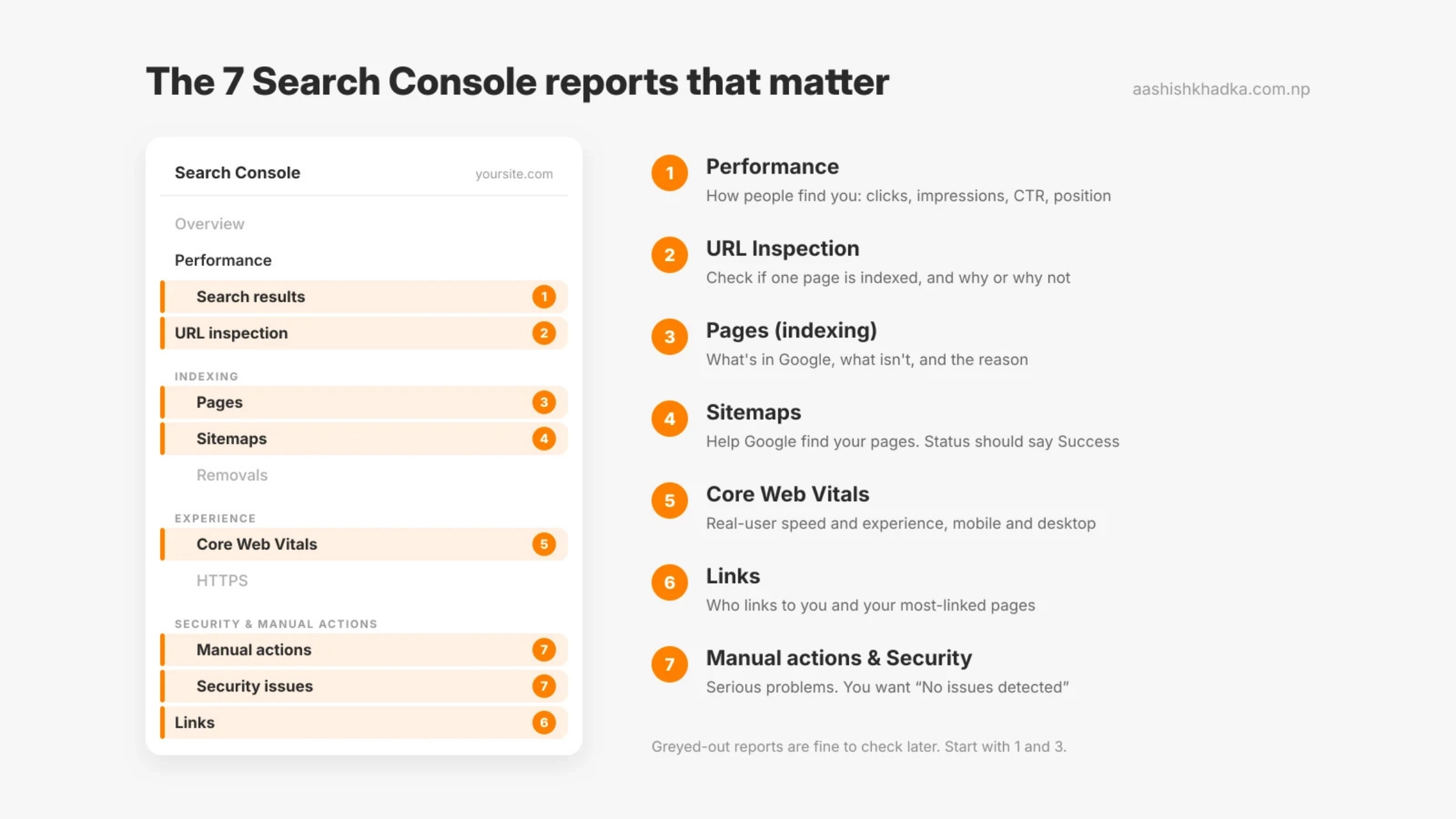
The 7 Search Console Reports That Actually Matter
1. Performance (Search results): how people find you
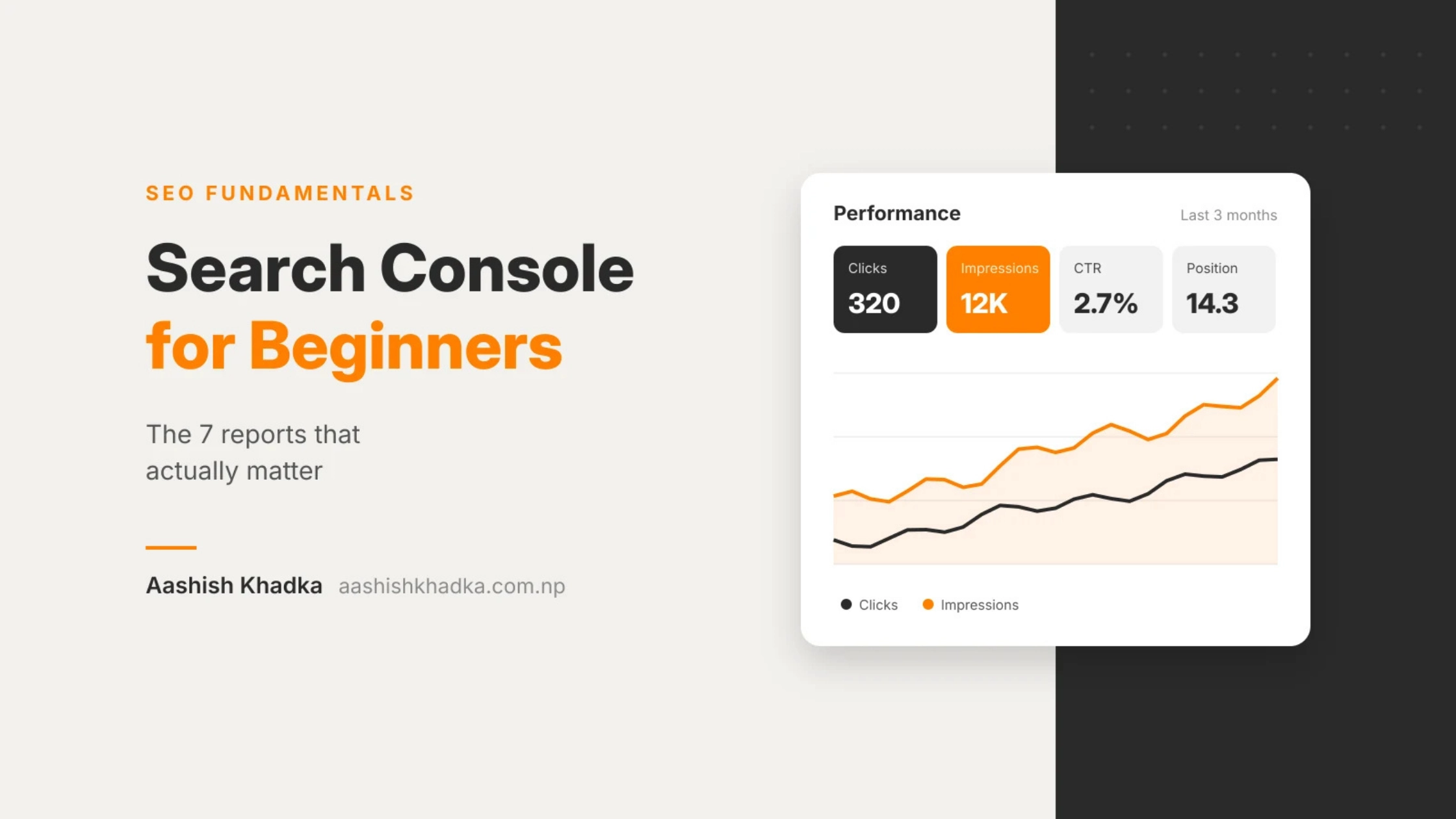
This is the report you'll use most. It shows how your site performs in Google Search over time.
Metric | Meaning | Example |
|---|---|---|
Clicks | People who clicked through to your site | 320 clicks this month |
Impressions | Times your site appeared in results (even if nobody clicked) | 12,000 impressions |
CTR | Click-through rate: clicks ÷ impressions | 2.7% |
Average position | Your average ranking position | 14.3 |
The tabs below the chart are where the gold is:
Queries: the exact searches you appear for
Pages: which pages get traffic
Countries and Devices: where and how people search
Quick win to try: filter for queries where your average position is between about 5 and 20. You already rank on page one or two for these, so improving those pages (better title, more complete answer, internal links) can move them up.
Another quick win: sort by impressions and look for pages with lots of impressions but low CTR. Their titles and meta descriptions probably need work. [On-Page SEO Checklist]
2. URL Inspection: check any single page
Paste any URL from your site into the search bar at the top. Search Console tells you:
Whether the page is indexed (in Google) or not, and why
When Google last crawled it
Which version Google treats as the main (canonical) URL
How Googlebot sees the page when you click Test live URL
After fixing or publishing an important page, you can click Request indexing to ask Google to crawl it again. It's a request, not a guarantee, and there's no need to do it for every small change.
3. Pages (Page indexing): what's in Google and what isn't
This report shows how many of your pages are indexed and lists the reasons other pages aren't. Not every "not indexed" page is a problem: redirects, duplicate versions and pages you've deliberately set to noindex are expected. Focus on important pages that should be indexed but aren't. Common statuses are explained further below.
4. Sitemaps: help Google find your pages
Submit your XML sitemap here and check that its status says Success. If Google reports errors or it can't fetch your sitemap, fix that first. You usually only need to submit it once; Google rechecks it automatically.
5. Core Web Vitals: real-user speed and experience
This report groups your pages into Good, Needs improvement and Poor, based on real visitors' experience of loading speed, responsiveness and visual stability, separately for mobile and desktop. Low-traffic sites may not have enough data to show here. Fix "Poor" groups first, and test individual pages in PageSpeed Insights. [Technical SEO?]
6. Links: who links to you
Shows your top linking sites, your most linked pages (from outside), and your most internally linked pages. Use it to see which content earns links and whether your important pages get enough internal links. [Internal Linking for SEO]
7. Manual actions and Security issues: check for serious problems
Manual actions: a human reviewer at Google found something against Google's spam policies on your site.
Security issues: your site may be hacked or serving harmful content.
You want both to say "No issues detected". If they don't, fixing them is your top priority. Search Console also emails you about these, so keep the account's email address current.
Common Indexing Statuses and What to Do
These show up in the Pages report. Here's what they mean in plain words:
Status | What it means | What to do |
|---|---|---|
Crawled – currently not indexed | Google visited but decided not to include it (yet) | Improve the content, add internal links; often a quality or uniqueness issue |
Discovered – currently not indexed | Google knows the URL exists but hasn't crawled it yet | Add internal links; check site speed and server health; be patient for new sites |
Excluded by ‘noindex’ tag | The page tells Google not to index it | Fine if intentional; remove the tag if the page should rank |
Duplicate without user-selected canonical | Google sees it as a copy of another page | Add a canonical tag pointing to the main version |
Alternate page with proper canonical tag | A duplicate correctly pointing to the main page | Usually fine, nothing to fix |
Not found (404) | The page doesn't exist | Fine for deleted pages; redirect if it moved; fix internal links pointing to it |
Page with redirect | The URL redirects elsewhere | Usually fine; make sure internal links point to the final URL |
Blocked by robots.txt | Your robots.txt stops Google crawling it | Fine if intentional; otherwise update robots.txt |
Server error (5xx) | Your server failed when Google visited | Check hosting and server stability |
After fixing an issue on important pages, use Validate fix in the report so Google rechecks them.
New in 2026: Generative AI Performance Reports
In June 2026, Google started rolling out dedicated performance reports for generative AI features, such as AI Overviews and AI Mode in Search, plus AI features in Discover. They show how often pages from your site appear in these AI features.
These reports were released to a subset of websites first and have been expanding gradually, so you may not see them yet. If you do, they're a useful way to track whether your content is being used in AI results. For more on AI search, see my post on SEO vs AEO vs GEO. [Internal link: SEO vs AEO vs GEO]
Google has also announced other improvements, like weekly and monthly views in performance reports. Availability can vary by account.
Your 15-Minute Weekly Search Console Routine
Check | Where | Look for |
|---|---|---|
1. Any alerts? | Overview + email | Manual actions, security issues, sudden errors |
2. Traffic trend | Performance | Big drops or spikes compared with previous weeks |
3. Rising opportunities | Performance → Queries | Queries in positions 5–20 worth improving |
4. Indexing health | Pages | New "not indexed" issues on important pages |
5. New content | URL Inspection | Are your latest important pages indexed? |
Once a month, also check Core Web Vitals, Links and Sitemaps.
For seasonal businesses like tourism, compare with the same period last year, not just last week, so you don't panic over normal seasonal dips.
FAQs About Google Search Console
Is Google Search Console free?
Yes, completely free. You only need a Google account and the ability to verify you own the website.
What's the difference between Search Console and Google Analytics?
Search Console shows how people find you in Google Search (searches, impressions, clicks, indexing). Analytics shows what visitors do on your site after they arrive.
Why are some of my pages not indexed?
Common reasons: Google hasn't crawled them yet, sees them as duplicates or low value, a noindex tag blocks them, or robots.txt blocks crawling. The Pages report tells you the exact reason for each URL.
How long until data shows up after setup?
Usually a few days. Reports update regularly but aren't real-time.
Should I use Request Indexing for every page?
No. Use it for important new or significantly updated pages. Google finds most pages on its own through links and your sitemap.
Does average position show my exact ranking?
No. It's an average across all the searches and times your page appeared, which can vary by location, device and personalisation.
Key SEO Terms in This Post
Term | Meaning |
|---|---|
Google Search Console (GSC) | Google's free tool for monitoring your site in Search |
Property | A website you've added and verified in Search Console |
Impressions | Times your site appeared in search results |
CTR | Click-through rate: the share of impressions that became clicks |
Average position | Your average ranking across appearances |
Indexing | Google storing your page so it can appear in results |
Canonical URL | The main version of a page Google chooses to show |
Sitemap | A file listing the pages you want Google to find |
Manual action | A penalty from a human reviewer at Google |
Wrapping Up
Search Console turns SEO from guesswork into something you can see. Start with the Performance and Pages reports, check them weekly, fix problems on your most important pages first, and use the queries data to find easy wins.
The best part: everything in this guide is free, straight from Google.
Last in this series: how AI search is changing SEO, and what to focus on. [SEO vs AEO vs GEO: What's the Difference and Where Should You Focus?]
Want help reading your Search Console data? Get in touch.